
How to Upload GIRO file to Standard Chartered Bank
Learn how to upload the GIRO CSV file to SG Standard Chartered Bank - Straight2Bank Classic by following these steps.
Before uploading bulk giro file in Standard Charted bank kindly make sure payroll data are available in the system for the users.
Step 1:
First, you need to generate your Standard Chartered Bank GIRO File on Carbonate.
Do this by logging in with your Carbonate account, then, go to Payroll on the left-side menu.
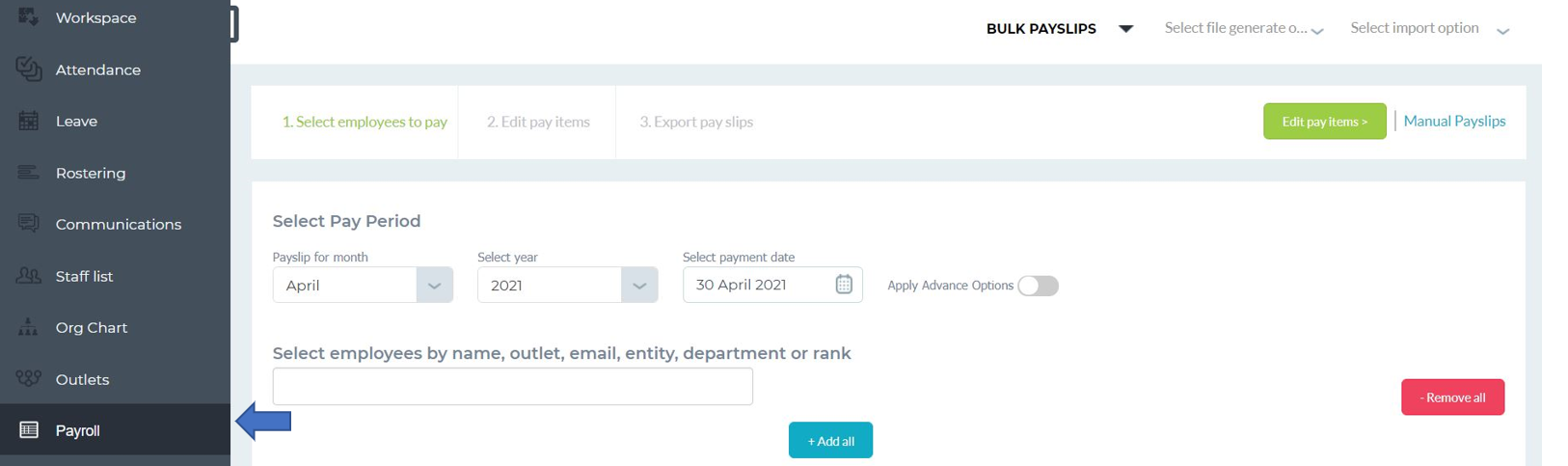
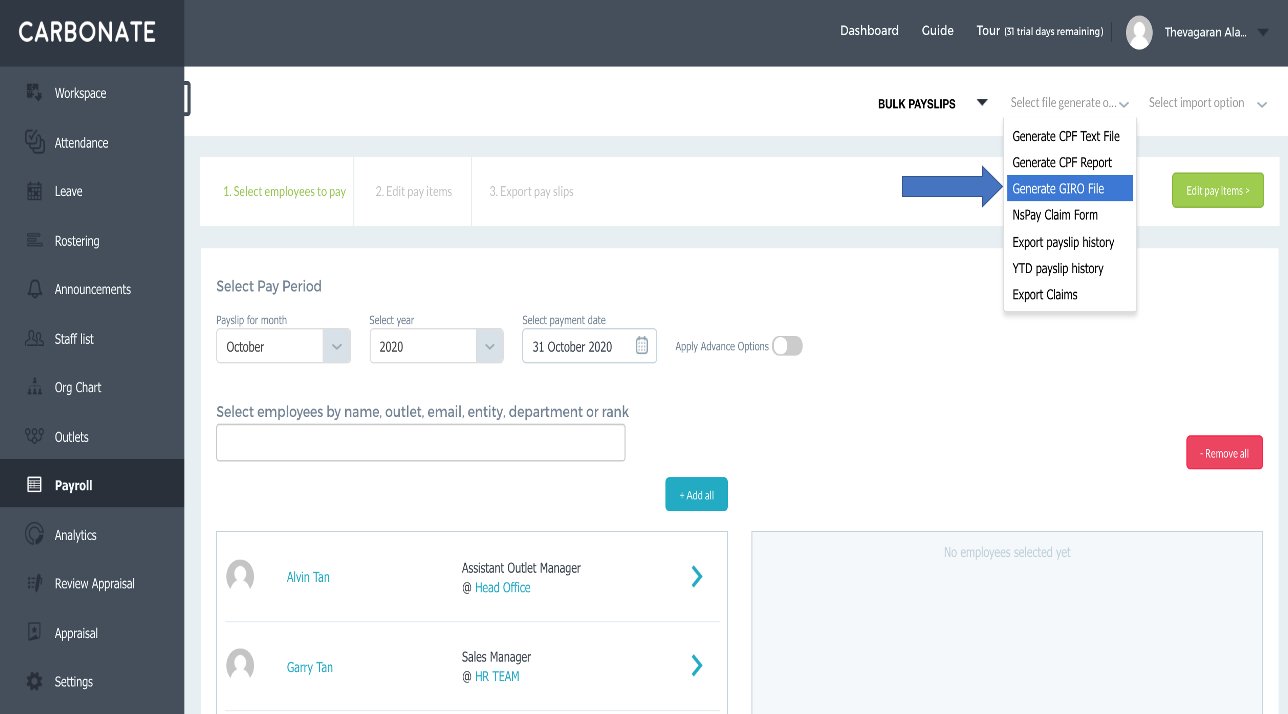
Click on the Select file generate option.
Select the ‘Generate Giro file’ on the drop-down list.
On the form, select Hiring Company, type in Company Account Number, Contribution Month, Execute Transaction Date (Salary transfer date), Company bank Code (Swift code), Your Reference and on behalf of and click on Generate button at the bottom to generate the Standard Chartered Bank GIRO file.

If we apply payslip fetch filter, we can add the outlets, employees and payment date details.

Lastly, when done filling up the form, click on the ‘Generate’ button below the pop-up page.

Step 1 : Login to Straight2Bank Website (Straight2Bank Website) with your credentials
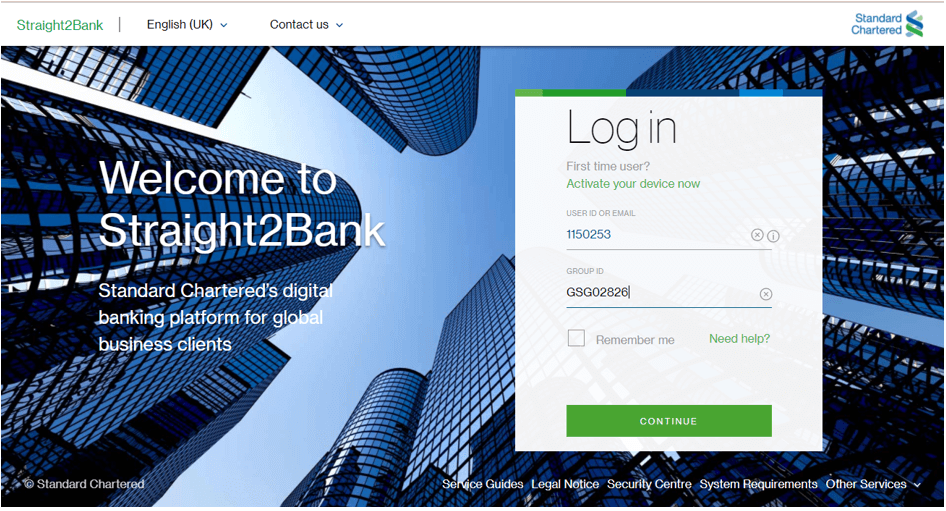
Upload Payroll Payment File In Straight2Bank
Go to Menu > Cash > Upload > Transcations

- Select “Payment template – Lite”
- Drag and drop .csv file to this screen. Maximum upload file: 10 MB.
- Click on “Import” button to upload the file.

You will see this message once the file is uploaded.

To verify whether your file was uploaded successfully or if it contains any errors or duplicate records:
- Navigate to Menu > Cash > Manage > Uploaded Files.

Verify in Status section.

Common reasons for an unsuccessful upload:
- Invalid debit account number. If it starts with “0”, please ensure it is present in the upload file. View details here.
- Invalid field characters (no special characters allowed).
- Missing / invalid payee bank and branch code on Column P and R. If you are unsure, visit https://www.sc.com/sg/help/faqs/bank-code-finder/ and use “Lookup Branch Code” to search for the bank and branch code.

Step 1:
Upon successful file upload, your authoriser can log into Straight2Bank to authorise the payment. Authoriser(s) will be able to view this on their main page dashboard.

Alternatively, go to Menu > Cash > Approve > Transactions.

Locate the transactions and verify the details.
You can approve the selected payment by clicking on the Action Menu.